Admin guide
Admin guide
A short tour of the Family Admin surface — the stuff under /admin in the web UI. Everything here is reachable by any user with the Family Admin or Super Admin role on the family.
Users
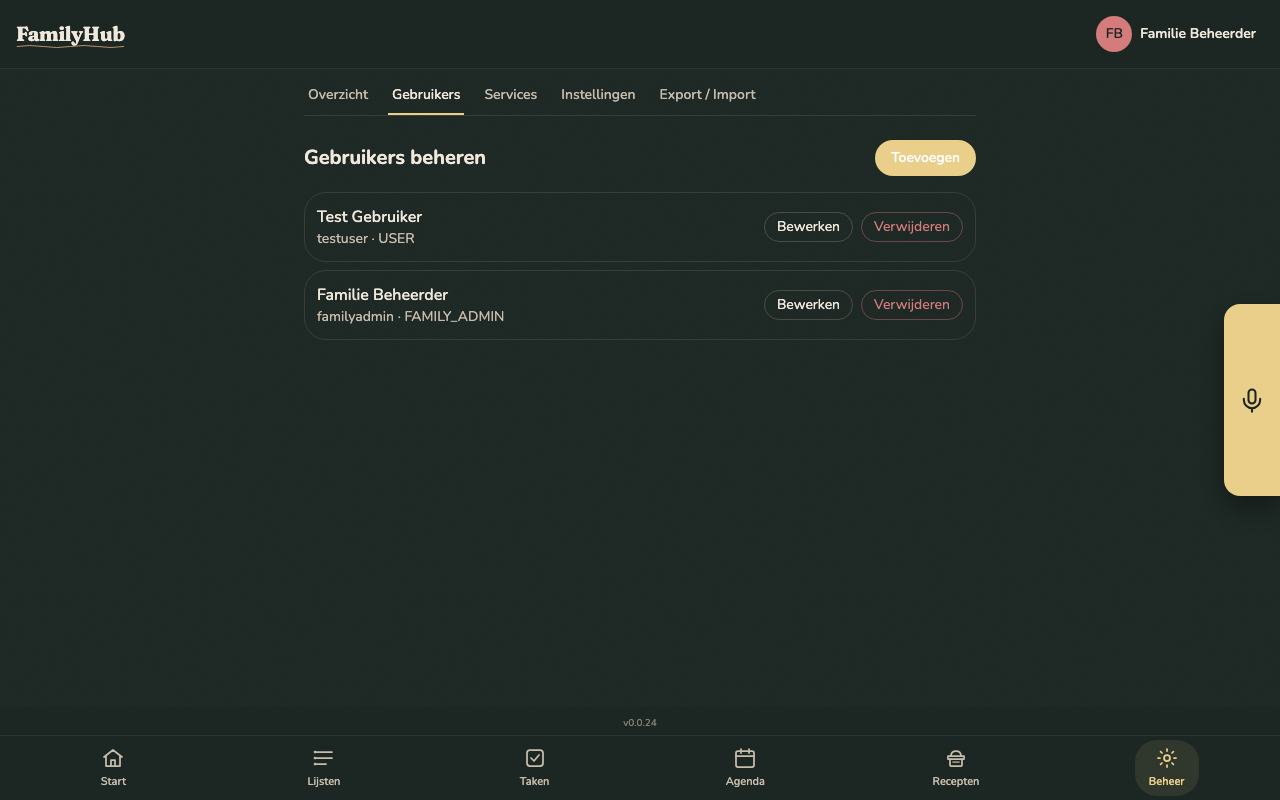
Admin > Users — list, create, update, and delete family members.
- Add a member — username + temporary password + role. No email step, no invite link: you hand the credentials to the family member directly.
- Rename — change username or display name.
- Change a member's role — promote a regular User to Family Admin, or demote.
- Reset a member's password — admins can set a new password for any other member of the family; the member should change it on next login (via Profile > Change password).
- Delete — removes the account. Assigned tasks stay (unassigned), calendar events stay, shopping items they added stay. Nothing is cascaded.
- Profile pictures — each member uploads their own, or an admin uploads on their behalf. They show up on the dashboard, in task-assignee pills, and next to each shopping item in the history.
Family preferences
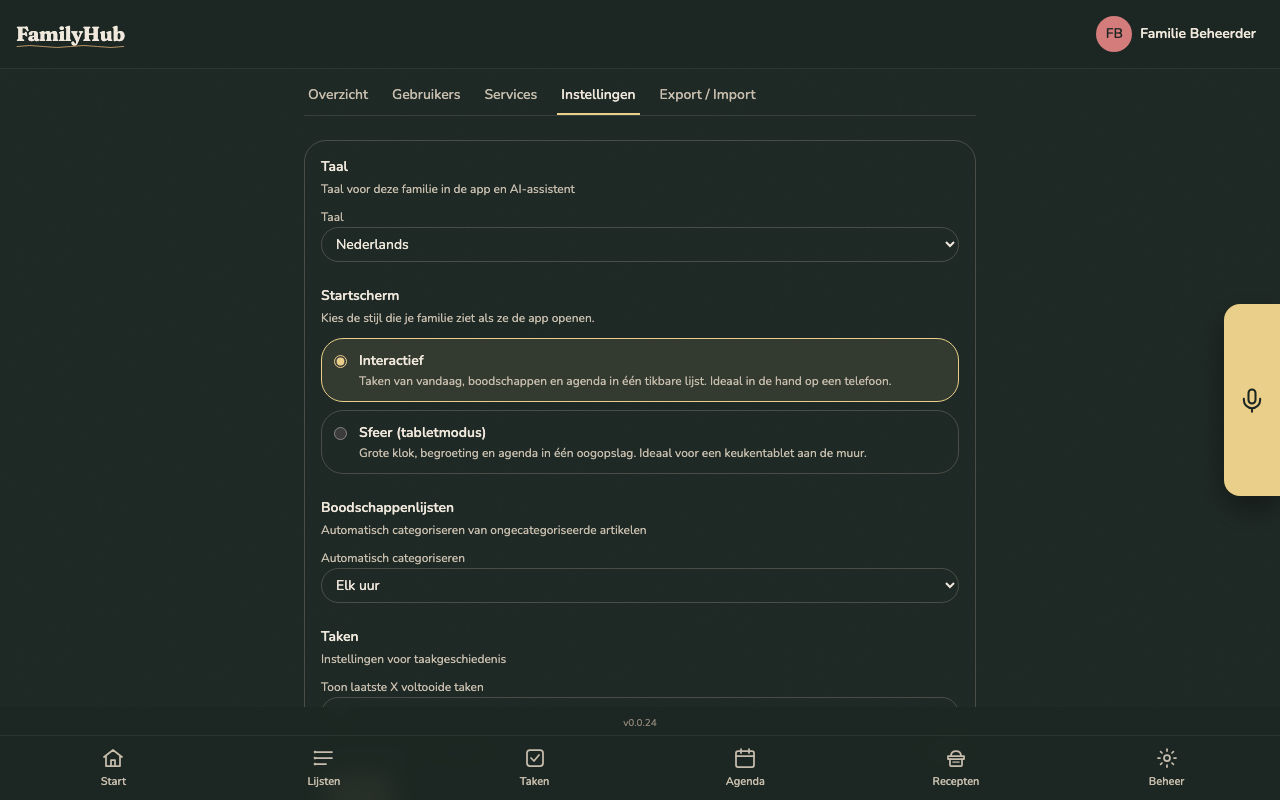
Admin > Settings — family-wide defaults that apply to every member:
- Language — Dutch or English. Switches the UI, the AI prompt templates, the STT language code, and email language in one go. See Multilingual support.
- Dashboard style — Classic (interactive, list-based) or Ambient (glanceable, clock + agenda). Applies to the home screen. See Hub display.
- Task history limit — how many completed task instances to keep on the history view (default 10).
- Shopping auto-categorise interval — how often the background job re-categorises items sitting in Overig; default every hour.
- Idle timeout — how long the hub waits with no activity before switching to the photo slideshow (default: 1 minute). Each family can override this or use the deployment default. See Hub display.
- Photo rotation — how long each photo stays on screen during the slideshow (default: 30 seconds). Same override behaviour.
Service configuration
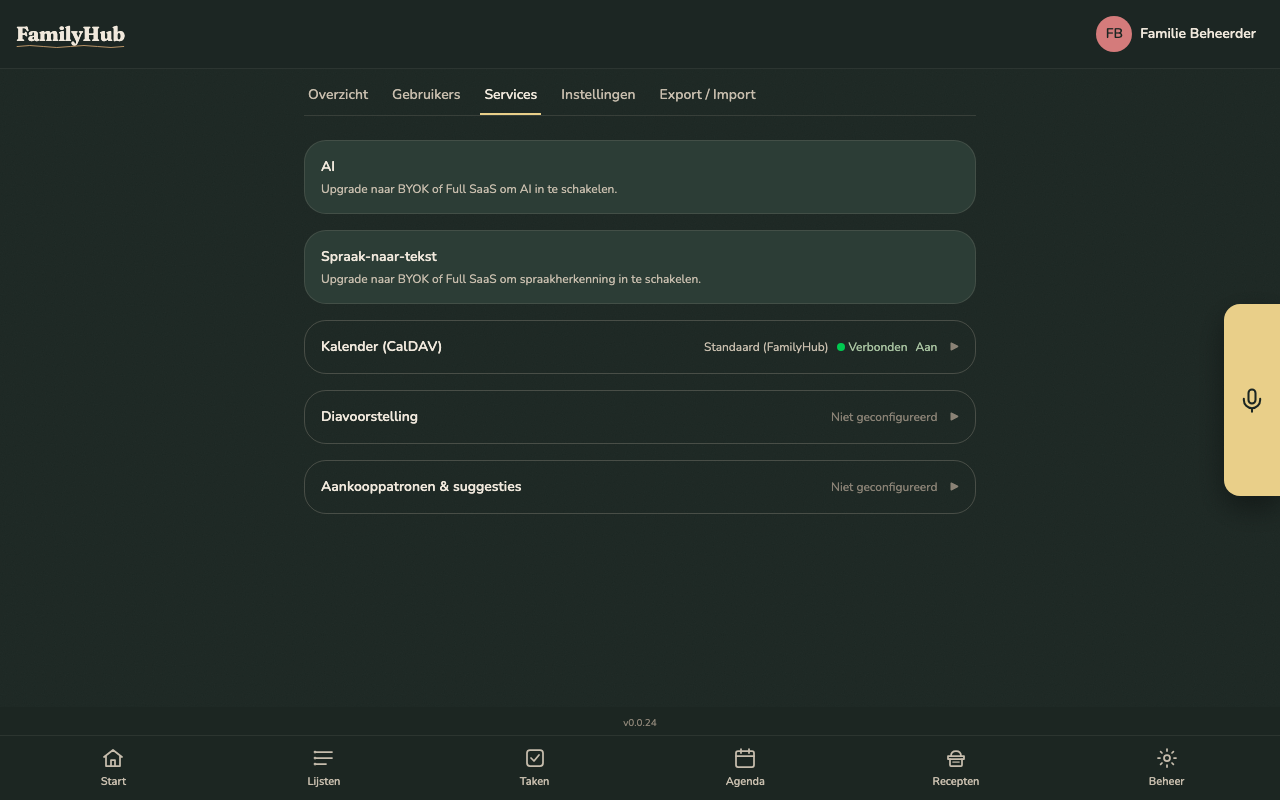
Admin > Services — wire up the integrations. Each service has a form, a Test button, and a health indicator.
| Service | What it's for | Fields |
|---|---|---|
| AI | Voice + text assistant, recipe import, shopping auto-categorise | Provider (Anthropic / OpenAI), API key, optional custom base URL |
| Speech-to-Text | Voice input transcription | Whisper-compatible URL + API key |
| CalDAV | Shared calendar (Radicale) | URL + username + password (per-family credentials are auto-provisioned on self-hosted) |
| Slideshow | Idle animation on the hub display | Provider (Google Photos public album URL / Immich base URL + API key + album ID) |
Credentials are encrypted at rest with the deployment's ENCRYPTION_KEY. Non-admin members never see them; they just use the configured service transparently.
CalDAV credentials (self-hosted)
When CalDAV is managed by FamilyHub (i.e. your deployment has CALDAV_HTPASSWD_PATH set to a shared writable path), each family gets its own family-<uuid> Radicale account automatically. Two admin actions are available:
- Reveal — fetch the family's current CalDAV password (shown once, don't paste into chat)
- Regenerate — rotate to a new password; any device currently syncing needs to be re-authed. Old password stops working immediately.
ICS subscription tokens
For read-only consumers (Proton Calendar, Google Calendar), the CalDAV feed is exposed as a signed ICS URL. The URL contains a token in its path because Proton/Google can't send custom auth headers. If the token is leaked, regenerate it from Admin > Services > CalDAV — old URLs stop working immediately. The new URL needs to be re-added in each external calendar.
Shopping suggestions
Two admin-only knobs:
- Trigger now — runs the shopping-suggestion AI pipeline once, out of band. Useful after a big list-refactor or when you change providers.
- Suppressions — a list of items that users have dismissed from suggestions enough times to ban. You can clear individual entries so the suggester picks them up again.
Data export & import
Admin > Data > Export — downloads a single JSON bundle containing users, shopping lists + items, tasks + recurrence + history, calendar events, recipes, preferences, and service configs (encrypted).
Admin > Data > Import — upload a bundle produced by Export. The import is additive by default: existing records are preserved, new ones appended. Use this to move between hosted and self-hosted, or to spin up a fresh dev copy from a real family.
Exports include the family's ICS subscription token but not user passwords.
AI usage panel
If the payment module is active (SaaS mode), Admin > Services > AI shows this month's request count against the plan cap (e.g. "842 / 3000 requests"). On the FREE plan no AI is allowed; the panel shows a "upgrade to unlock" CTA.
On self-hosted deployments with the payment module off, the same panel shows current-month usage but without a cap — it's purely informational.
Super admin
Super admins see one extra nav entry, Super admin, with a cross-family view:
- List every family on the deployment with trial / subscription status and latest activity
- Inspect any family's AI usage and service health
- Extend or terminate trials (SaaS mode only)
- Convert a trial to paid without going through Stripe Checkout (for comped accounts)
Super admin does not grant access to individual family data (shopping lists, events, etc.). That's by design — you manage families, not their content.