Hub Display
Hub Display
The hub display turns any tablet into an always-on family command center for the kitchen or living room. It shows everything the family needs to know at a glance — tasks, shopping, and the calendar — updated in real time without any manual refresh.
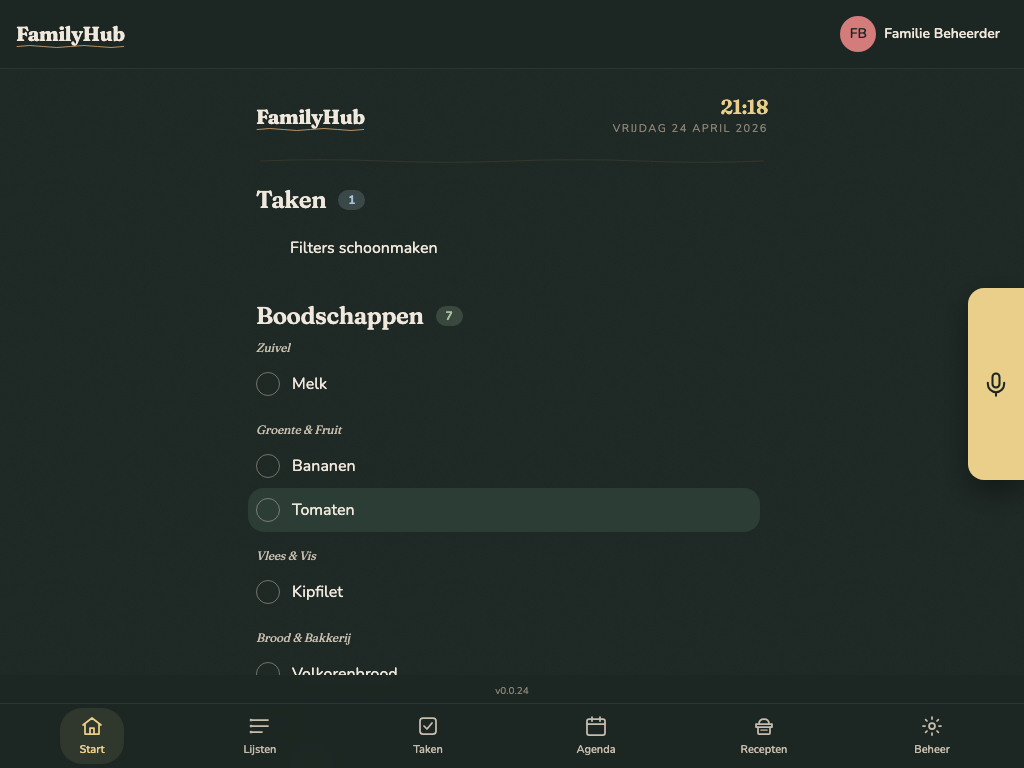
Two Dashboard Styles
FamilyHub ships with two dashboard styles. The family admin picks which one the whole family sees in Admin > Settings > Dashboard style:
- Classic — the dense information view described below. Best when the hub is the family's primary planning surface and you want everything at once.
- Ambient — a calmer, more decorative layout that leads with the time, greeting, and a day-of-week glyph, then shows compact tiles linking into the shopping list, tasks, and agenda. Best for always-on kitchen displays where you want something beautiful to look at during the day and only drill in when you need details.
The two styles share the same real-time data — switching is purely visual, nothing is lost.
Classic Dashboard Layout
The classic dashboard is organized top to bottom:
- Today's tasks — up to 8 task instances due today, color-coded by assignee. Overdue instances are highlighted.
- Shopping list — unchecked items from the active Boodschappen list, grouped by category.
- Upcoming calendar — today's events plus the next few days. All-day events appear as banners; timed events as a compact list per day.
- No AI control on this screen — the classic dashboard has neither a persistent AI bar nor a + button of its own. Head to the shopping list, task list, or calendar screen — each has a + you can tap to add manually or hold to speak.
Completed task history can optionally be shown on the dashboard (configurable by the family admin in Admin > Settings).
Ambient Dashboard Layout
The ambient dashboard leads with atmosphere rather than data density:
- Clock and greeting — the current time, today's date, and a friendly greeting that shifts through the day.
- Day glyph — a hand-drawn chalk icon that rotates based on the time of day (coffee in the morning, a sandwich around lunch, a wine glass in the evening, stars at night).
- Quick tiles — shopping, tasks, and agenda summaries. Tap a tile to jump to the full screen.
- Voice and text input — each column has its own + button: tap it to open the add form, or hold it down to speak a command and let go when you're done.
Use this style when the hub is more decoration than dashboard — it still surfaces urgent items, but stays quiet most of the time.
Real-Time Updates
All changes push instantly via WebSocket. The moment someone checks off a task from their phone, it disappears from the hub display. No polling, no manual refresh. The connection auto-reconnects if it drops.
Recommended Hardware
The hub UI works on any tablet. It also looks great on e-ink displays with high contrast and large touch targets.
| Device | Screen | Notes | Price |
|---|---|---|---|
| BOOX Tab Mini C | 7.8" color e-ink | Great for the kitchen — readable in bright light, no glare | ~EUR280 |
| BOOX Go 10.3 | 10.3" B&W e-ink | Larger dashboard view, excellent contrast | ~EUR380 |
| Amazon Fire HD 8 | 8" LCD | Budget option for getting started | ~EUR80 |
Kiosk Mode Setup
Fully Kiosk Browser (Android — recommended)
- Install Fully Kiosk Browser on the tablet
- Set the Start URL to your FamilyHub URL
- Enable Kiosk Mode — hides the Android navigation bar, prevents exiting
- Enable Motion Detection to wake the screen when someone walks up
- Set scheduled Screen Off hours (e.g., off at 22:00, back on at 6:00)
BOOX Devices
Use Fully Kiosk Browser as above, or use BOOX's built-in app-lock feature to freeze the display to the FamilyHub PWA.
Idle Slideshow
When no one is interacting with the display, it switches to a photo slideshow — cycling through family photos before returning to the dashboard on touch.
Configure the photo provider in Admin > Services > Slideshow:
- Provider — Google Photos (link an album) or Immich (self-hosted photo manager)
Configure the timings in Admin > Settings, under Hub display:
- Idle timeout — how long to wait before switching to the slideshow (default: 1 minute)
- Photo rotation — how long each photo is shown (default: 30 seconds)
Each control has a Default option that falls back to the deployment's configured default instead of a per-family override.
Tap or touch anywhere to dismiss the slideshow and return to the dashboard. Press Escape to dismiss from a keyboard.
Display Hours
Use the tablet's built-in scheduled on/off (or Fully Kiosk Browser's scheduled URL mode) to match your household's active hours. A common setup: screen on at 06:00, off at 22:00.
Installation Tips
- Mounting — VESA adapters exist for most tablets; a small shelf bracket also works well
- Power — run a USB-C cable along the wall to a hidden power point; keep the tablet on permanent charge
- Orientation — landscape suits the dashboard layout; portrait works for a shopping-list-only view
- Night light — BOOX tablets have a scheduled warm front light, ideal for evening kitchen use without harsh blue light