Household Tasks
Household Tasks
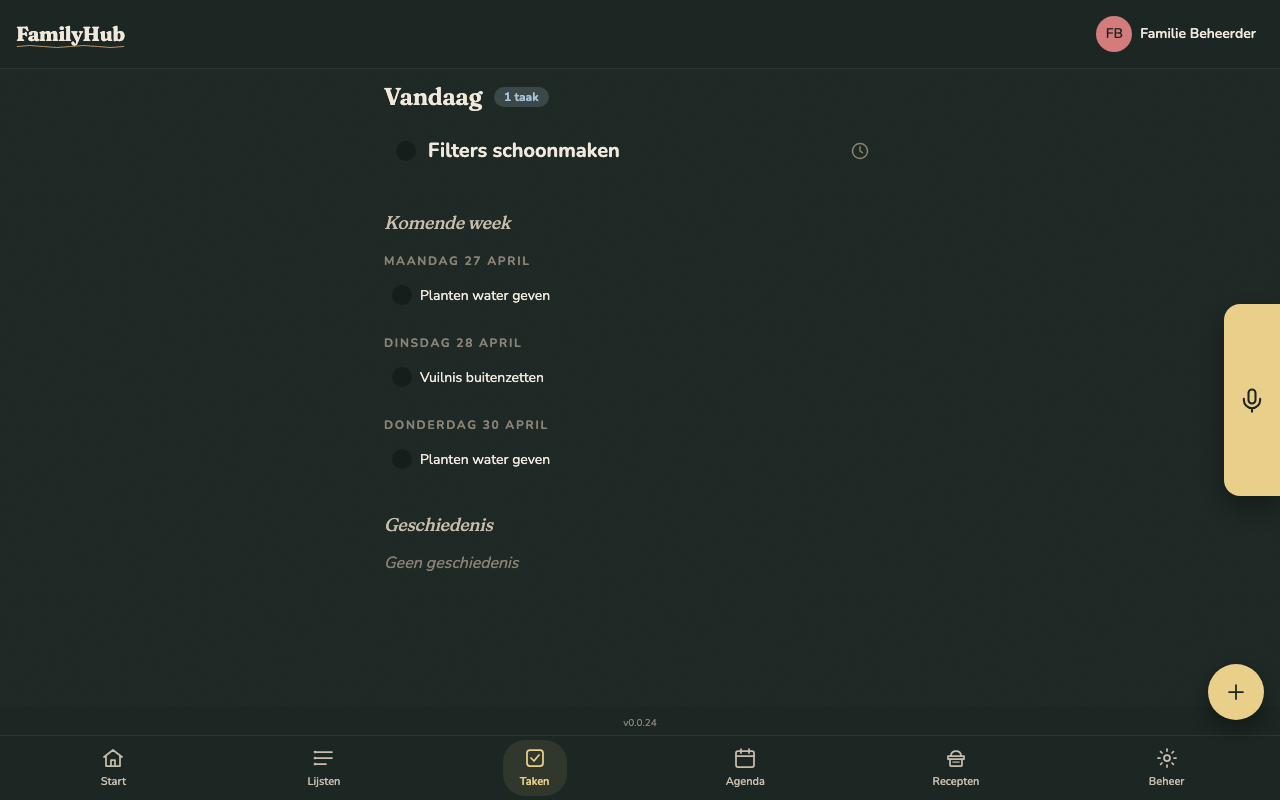
FamilyHub's task system handles both one-off and recurring household chores. Tasks are visible at a glance on the dashboard and the kitchen hub display, color-coded by who they're assigned to.
Task Structure
Every task has:
- Title — what needs to be done
- Description (optional) — any extra notes
- Assignee (optional) — which family member is responsible
- Priority — Low, Medium, or High
- Recurrence rule (optional) — how often it repeats
One-Off Tasks
Tasks without a recurrence rule are one-off tasks. They have a single instance with an optional due date. Use these for things like "Goten schoonmaken volgende zaterdag" or "Auto naar de garage brengen".
Recurring Tasks
Recurring tasks repeat on a schedule. FamilyHub generates concrete instances 14 days ahead automatically via a daily background job. Each instance is independent — completing today's instance does not affect next week's.
Recurrence Patterns
| Pattern | Example |
|---|---|
| Every N days | "Water de planten elke 3 dagen" |
| Weekly on specific days | "Vuilnis buitenzetten elke maandag en donderdag" |
| Every N weeks | "Badkamer schoonmaken elke 2 weken" |
| Every N months | "Waterfilter vervangen elke 3 maanden" |
| Yearly | "CV-ketel laten onderhouden elk jaar" |
Task Instances
When a recurring task is due, an instance appears on the dashboard for that day. Tapping it marks it as complete. The task itself keeps generating future instances on schedule.
- Complete — tap the checkmark. Marks this occurrence as done for today. You can see who completed it and when.
- Undo completion — changed your mind? Tap again to unmark it.
- Snooze — pushes the instance to tomorrow (or by a custom amount). Useful when you just can't get to it today.
Assigning Tasks
Tasks can be assigned to any family member. Long-press a task and choose Assign, or use the AI assistant: "assign vacuuming to Lisa". On the dashboard and hub display, each person's tasks are shown in their assigned color. Unassigned tasks appear in a neutral color.
Dashboard View
The dashboard shows:
- Today — all instances due today (up to 8), ordered by priority
- Upcoming — instances due in the coming days
Overdue instances (past due date, not yet completed) are highlighted so nothing slips through.
Task History
Completed task instances are available in the history view. Your family admin can configure:
- History limit — how many completed instances to show (default: 10)
- Show on dashboard — whether completed tasks appear on the main dashboard
Creating Tasks via AI
| Command | Action |
|---|---|
| "planten zijn water gegeven" | Marks the "planten water geven" task as complete for today |
| "maak een taak aan om de goten schoon te maken volgende week" | Creates a one-off task with a due date |
| "snooz de vuilnis taak naar morgen" | Snoozes the trash task to tomorrow |
| "archiveer de taak ramen lappen" | Archives the task (hidden from views, kept in history) |