Shopping Lists
Shopping Lists
Shopping lists are one of the core modules in FamilyHub. All family members share the same lists in real time — the moment someone adds an item or checks it off, every connected device updates instantly.
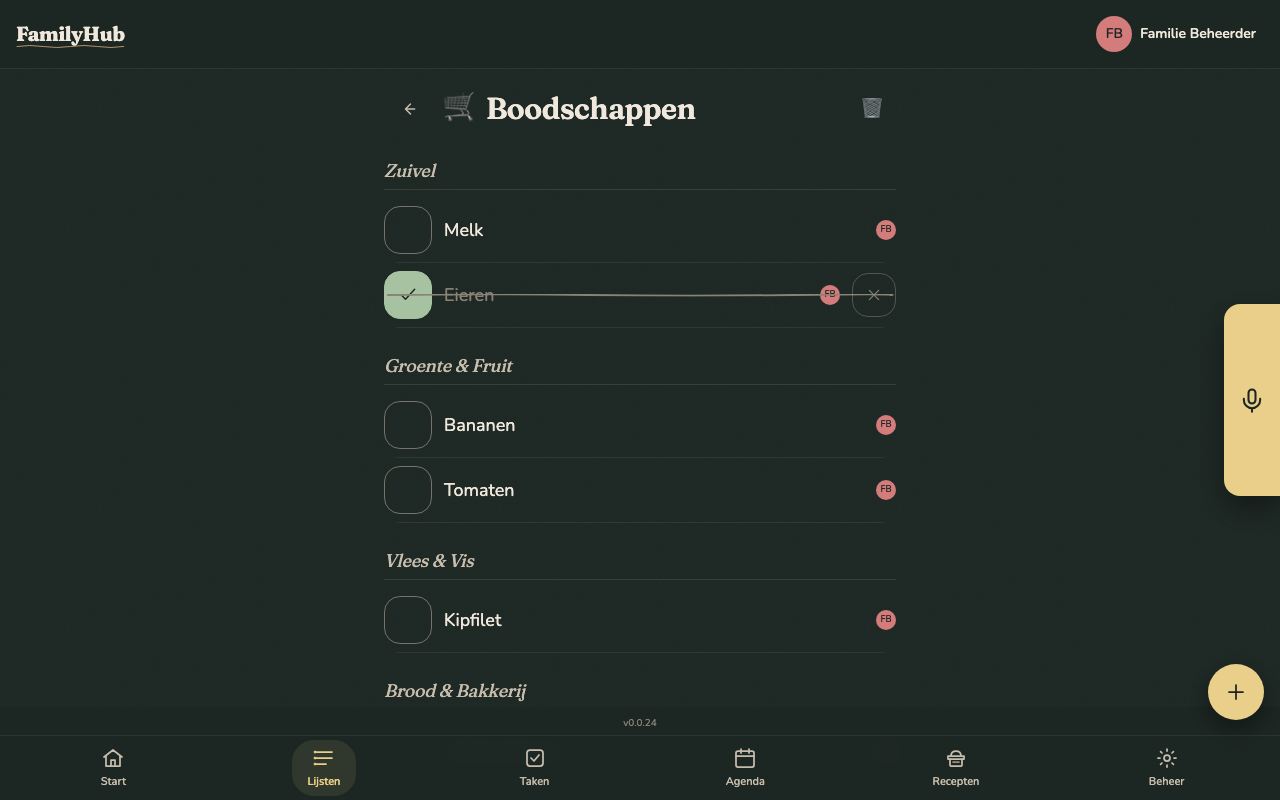
Multiple Lists
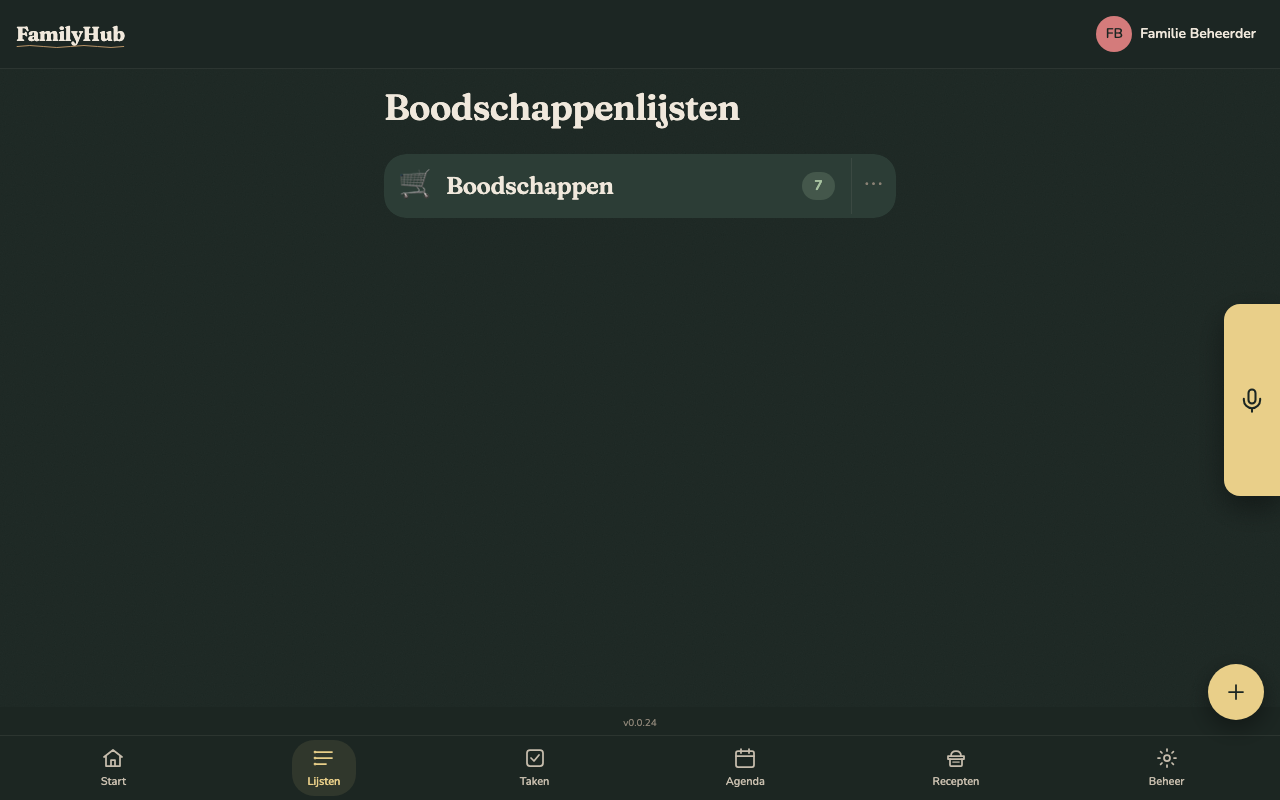
You start with no lists — create one for each shopping trip or store:
- IKEA — furniture and home accessories
- Gamma — hardware and DIY supplies
- Action — household and discount items
To create a list: tap + on the Shopping Lists screen, give it a name, and optionally choose an icon. Lists can be archived (hidden from the main view) when no longer needed. List names are unique within your family.
Adding Items
There are three ways to add items to a list:
- Tap + on the list — type the item name, optional quantity and unit
- AI text input — type "voeg melk, eieren en brood toe" in the AI bar
- AI voice input — hold the + and say it out loud
The AI automatically assigns items to the correct category based on their name. You can override the category manually after adding.
Item Categories
Items are grouped by category within the list to make in-store navigation easier:
| Category | Dutch name | Examples |
|---|---|---|
| Dairy | Zuivel | Melk, kaas, yoghurt, boter |
| Fruit & Vegetables | Groente & Fruit | Appels, broccoli, wortels |
| Meat & Fish | Vlees & Vis | Kip, zalm, gehakt |
| Bread & Bakery | Brood & Bakkerij | Brood, broodjes, croissants |
| Drinks | Dranken | Sap, water, bier, wijn |
| Household | Huishouden | Schoonmaakmiddel, keukenpapier |
| Frozen | Diepvries | Pizza, ijsjes, diepvriesgroenten |
| Canned Goods | Conserven | Blikken soep, tomaten, bonen |
| Sauces & Spices | Sauzen & Kruiden | Ketchup, mayonaise, peper |
| Snacks | Snacks | Chips, koekjes, noten |
| Personal Care | Verzorging | Shampoo, tandpasta, zeep |
| Other | Overig | Everything that doesn't fit above |
Checking and Unchecking Items
Tap an item to check it off — it moves to the bottom of its category group with a strikethrough. Tap again to uncheck it. Swipe an item left to remove it.
All changes are reflected on every connected device within one second.
Clearing Items
After finishing a shopping trip:
- Clear checked items — removes everything that was checked off. Unchecked items remain.
- Clear all items — removes every item from the list.
Shopping Habits
Tap the ⋯ menu next to the "Shopping Lists" heading and choose View shopping habits to see how your family actually shops over time. Pick a period — 30, 90, or 365 days — and optionally narrow it down to a single list.
The page shows your total number of purchases, how many distinct items you bought, your most-bought item, a full ranking of items by purchase frequency, and a breakdown by category.
Shopping habits are counted from items checked off a shopping list — not items that were merely added or removed. If your family tends to delete items instead of checking them off, this page will look emptier than expected.
Deleting a list also deletes its purchase history. If you want to keep a list's shopping habits around, archive it instead of deleting it.
Auto-Categorization
FamilyHub uses AI to automatically categorize items based on their name. A background job runs periodically (configurable by your family admin — default every hour) to categorize any items that haven't been categorized yet. You can also trigger categorization manually from the list view.
Real-Time Sync
Shopping lists use WebSocket for real-time updates. When you're in the supermarket and your partner adds an item from home, it appears on your screen immediately — no need to refresh or reopen the list.
AI Commands
| Command | Action |
|---|---|
| "voeg melk toe" | Adds milk to your default list |
| "voeg melk, eieren en brood toe" | Adds multiple items at once |
| "voeg Billy kast toe aan de IKEA lijst" | Adds to the IKEA list |
| "heb ik al boter op de lijst?" | Checks if butter is on the list |
| "kruis boter af" | Marks butter as checked |
| "zet melk terug" | Unchecks milk |
| "verwijder boter van de lijst" | Removes butter permanently |
| "verwijder alle afgevinkte items" | Clears checked items |
| "voeg een IKEA lijst toe" | Creates a new list named IKEA |
| "verwijder de IKEA lijst" | Deletes the IKEA list |